
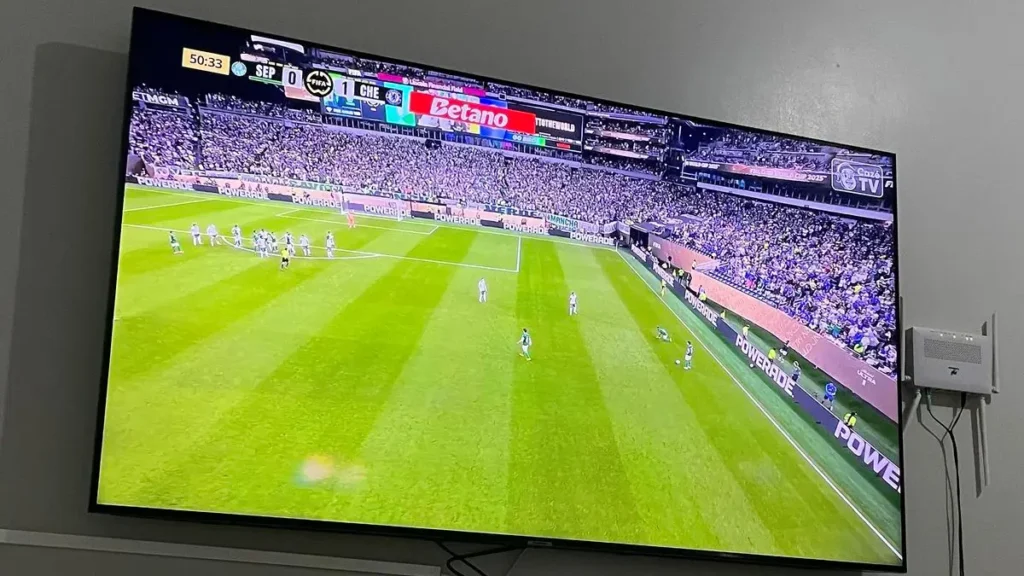
You’ve picked an IP TV subscription, and now you need to get it working. The good news is that IPTV Smarters Pro setup takes about five minutes once you have your login details, and TiviMate is just as quick. This guide walks you through both apps, shows you which one suits your device, and fixes the most common problems.
What You Need Before You Start
Whether you use internet protocol television on a phone, a smart TV or a streaming box, you need three things:
- An active subscription from one of the IPTV providers you trust. New here? Read our IPTV subscription guide first.
- Your login details or playlist link, which the provider sends by email after you IPTV subscribe. This is usually a username, a password and a server URL, or an M3U link.
- A stable internet connection of at least 10 Mbps for HD and 25 Mbps or more for 4K.
IPTV Smarters Pro vs TiviMate: Which One Should You Use?
IPTV Smarters Pro
- Best for phones, tablets and beginners
- Works on Android, iOS, Fire TV, smart TVs and more
- Simple layout and very easy to use
TiviMate
- Best for Android TV and Fire TV living-room viewing
- Clean, detailed TV guide with more customisation
- Designed for remote-control use
As a rule, pick IPTV Smarters Pro if you watch on a phone or tablet or use several kinds of devices. Pick TiviMate if you mainly watch on a TV with a remote control.
IPTV Smarters Pro Setup: Step by Step
- Install the app. Download IPTV Smarters Pro from the official app store for your device (Google Play or the App Store). On Fire TV, install it using the Downloader app.
- Open the app and accept the terms.
- Choose how to log in. Select the login-with-details option or the playlist option, depending on what your provider sent.
- Enter your details. Type the username, password and server URL exactly as written in your email. Copy and paste them to avoid typos.
- Tap Add User and wait for the channels, movies and series to load.
- Browse and favourite. Open Live TV, pick a category and add your most-watched channels to favourites.
How to Set Up TiviMate
- Install TiviMate from the Google Play Store (Android TV) or Amazon Appstore (Fire TV).
- Open the app and select Add playlist.
- Choose your source. Use the M3U playlist option or the login-details option, whichever your provider supplied.
- Enter your link or credentials and confirm.
- Wait for the import to finish. Larger channel lists can take a minute.
- Customise your view. Reorder channel groups, hide the ones you never watch and set up your favourites list.
Some TiviMate features, such as multiple playlists, favourite groups and recording, require the app’s paid upgrade. Check the current options inside the app before you decide.
Common Problems and Quick Fixes
- Channels won’t load: Re-check your username, password and server URL for typos or extra spaces.
- Constant buffering: Restart your router, use an Ethernet cable if possible and close other apps that use bandwidth.
- No TV guide (EPG): Refresh the playlist and check that your provider includes a guide.
- “Login failed” message: Confirm that your subscription is active and that you haven’t exceeded the number of devices allowed on your plan.
- App crashes or freezes: Update the app, clear its cache and restart your device.
How to Choose a Reliable Provider
The app is only half of the experience. Your picture quality depends on the provider, so look for licensed content, stable servers, real customer support, clear pricing and a trial period. You may come across names like ForeverTV while comparing options. Whichever service you consider, run it through the same checklist before you pay.
Looking for a service that works with both apps? Explore the plans at Hub Streaming Service or get help from the team at Meynova.
Frequently Asked Questions
Is IPTV Smarters Pro free?
The app is free to download, but you still need an IPTV subscription from a provider to get channels. The app itself does not include any content.
Is TiviMate better than IPTV Smarters Pro?
TiviMate is usually preferred for TV screens and remotes, while IPTV Smarters Pro is more flexible across phones, tablets and TVs. Many people install both and keep the one they like best.
Can I use the same subscription on both apps?
Yes, as long as your plan allows the number of connections you use. Enter the same login details in each app.
How long does IPTV Smarters Pro setup take?
Most people finish in about five minutes. You only need your username, password and server URL, or your playlist link.
Why is my IPTV buffering?
The most common causes are slow Wi-Fi, an overloaded router or a busy server during live sports. A wired connection and a restart usually help.
Does IPTV work in Canada, Australia and Europe?
Yes. IPTV works anywhere with a good internet connection, though the available channels depend on your provider and region.
Final Thoughts
IPTV Smarters Pro setup and TiviMate are simple once you have your details. Pick the app that fits your device, enter your credentials carefully and organise your favourites. Ready to start watching? Choose your plan at Hub Streaming Service or Meynova.